Back to Labs
Lab F
Burn & Dodge, Masking, and Contrast
Reference Materials: Lecture 6
Review the Lecture 6 materials before starting this lab
Due: October 27
Software: The steps below use Photoshop, but you can also complete this activity in Affinity, Paintstorm, or other pixel-based image software that has similar tools.
Choose 1 of 4 Photos
Download one of the photos below to use for this activity.
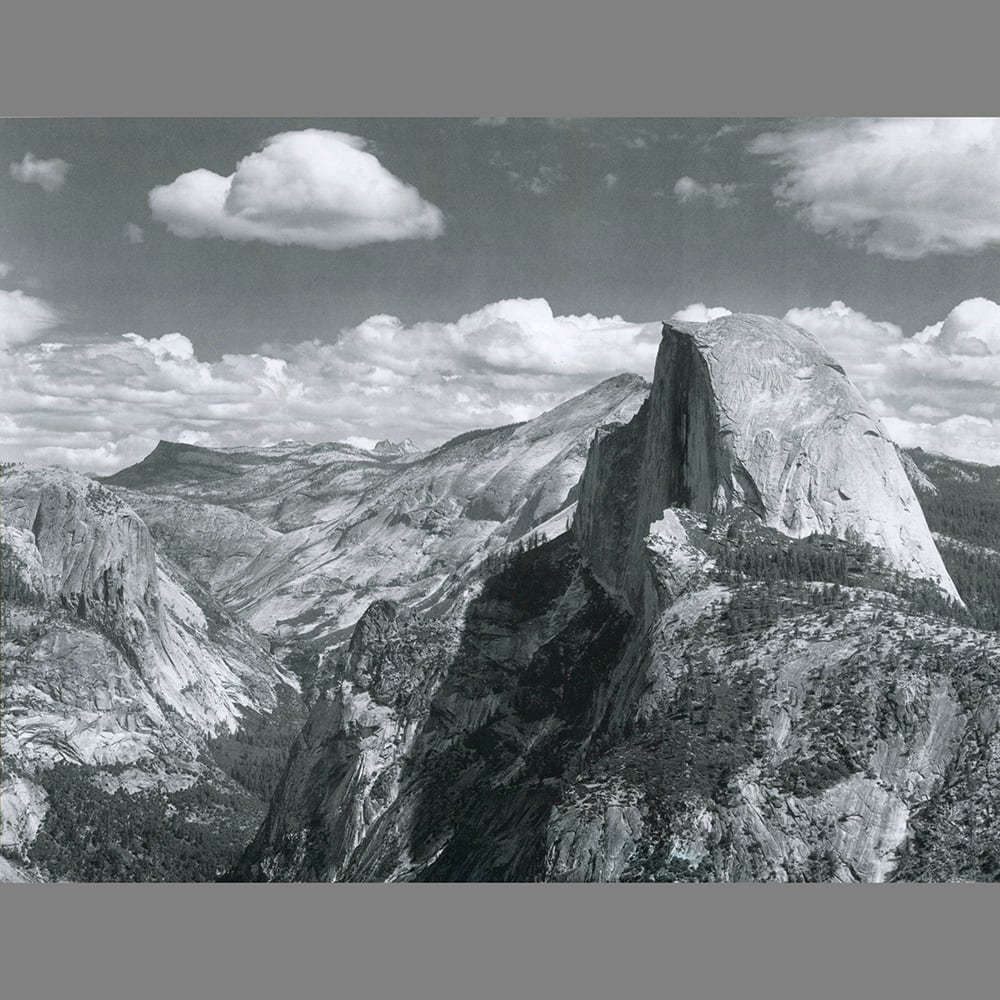 Half Dome, YosemiteDownloadHalf Dome, Yosemite
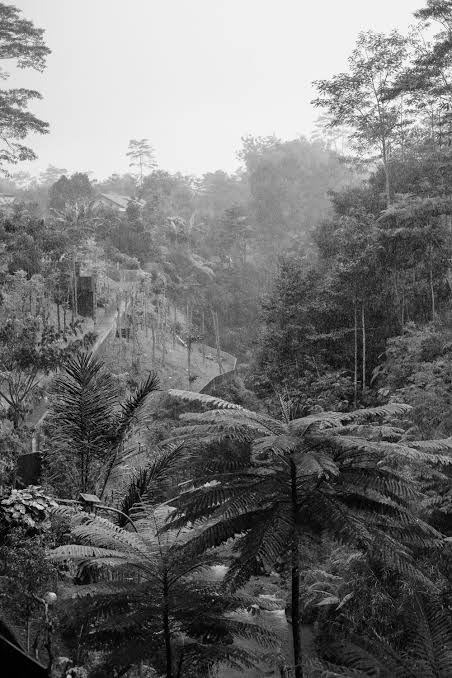 Misty JungleDownloadMisty Jungle
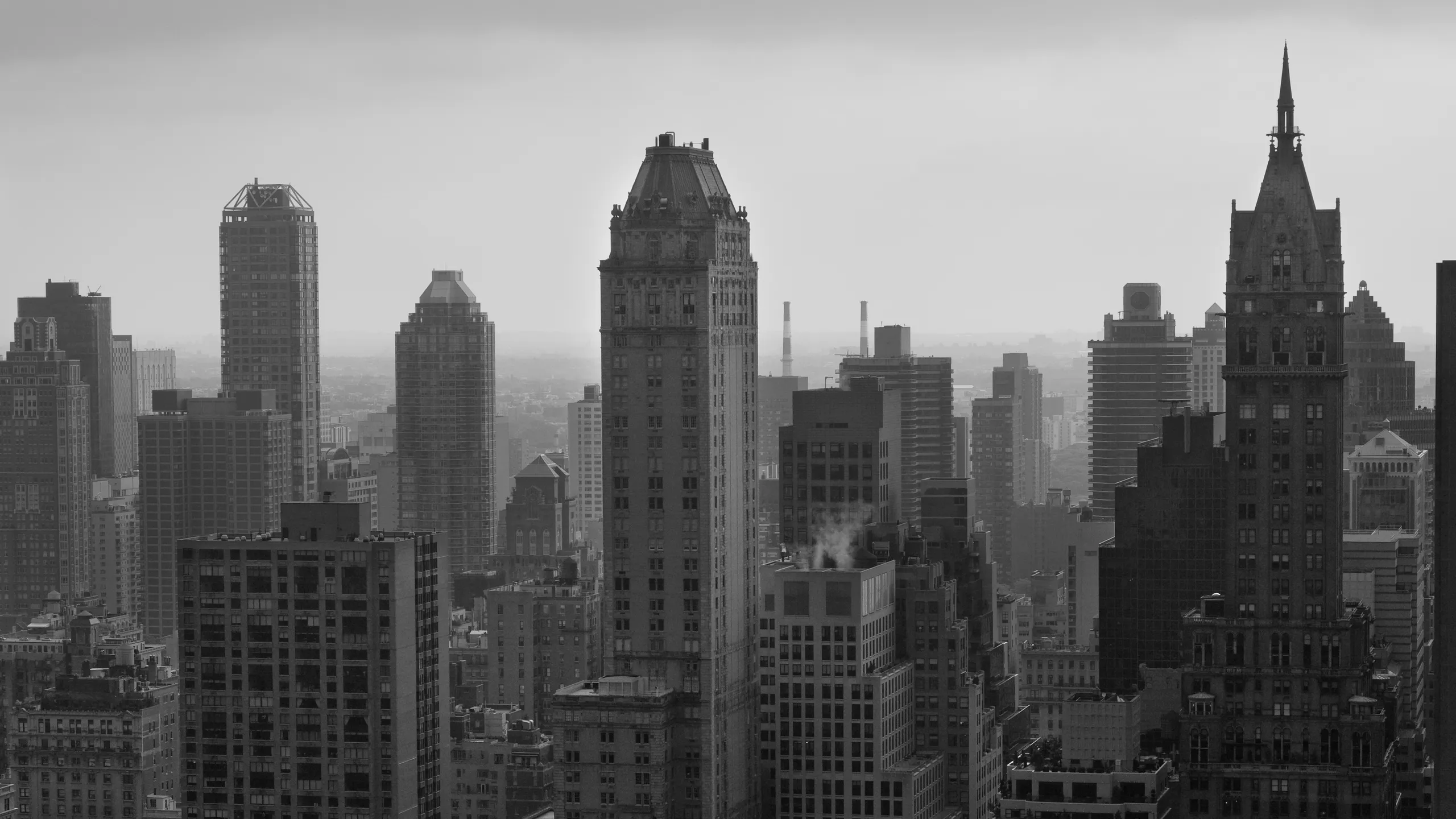 City SkylineDownloadCity Skyline
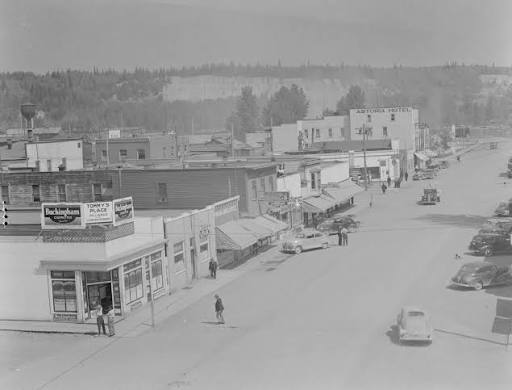 Vintage Main StreetDownloadVintage Main Street
Steps
1. Open Your Photo
- • Choose 1 of the 4 photos above, download it, and open it in Photoshop (or Affinity, Paintstorm, or other pixel software).
2. Burn & Dodge
- • Select the Dodge tool (lightens) or the Burn tool (darkens).
- • Choose a brush tip and set brush options in the options bar.
- • In the options bar, select one of the following from the Range menu: Midtones, Shadows, or Highlights.
- • Drag over the part of the image you want to lighten or darken.
3. Make a Mask Clipping
- • Enable a selection tool, such as Object Selection, Quick Selection, Magic Wand, Lasso, or Marquee.
- • Select Select and Mask in the options bar.
4. Adjust Contrast
- • Click the Brightness/Contrast icon in the Adjustments panel, or
- • Choose Layer > New Adjustment Layer > Brightness/Contrast, then click OK in the New Layer dialog box.
- • In the Properties panel, drag the sliders to adjust the brightness and contrast.
5. Save & Upload
- • Save as a JPG and upload 1 before JPG and 1 after JPG.
Deliverables
- • 1 before JPG (the original photo you chose)
- • 1 after JPG (with burn & dodge, masking, and contrast adjustments applied)
Submit
Due October 27.
Send your submission via email to mitchellh2@cnc.bc.ca. Please CC any other instructors for this course.