
Back to Labs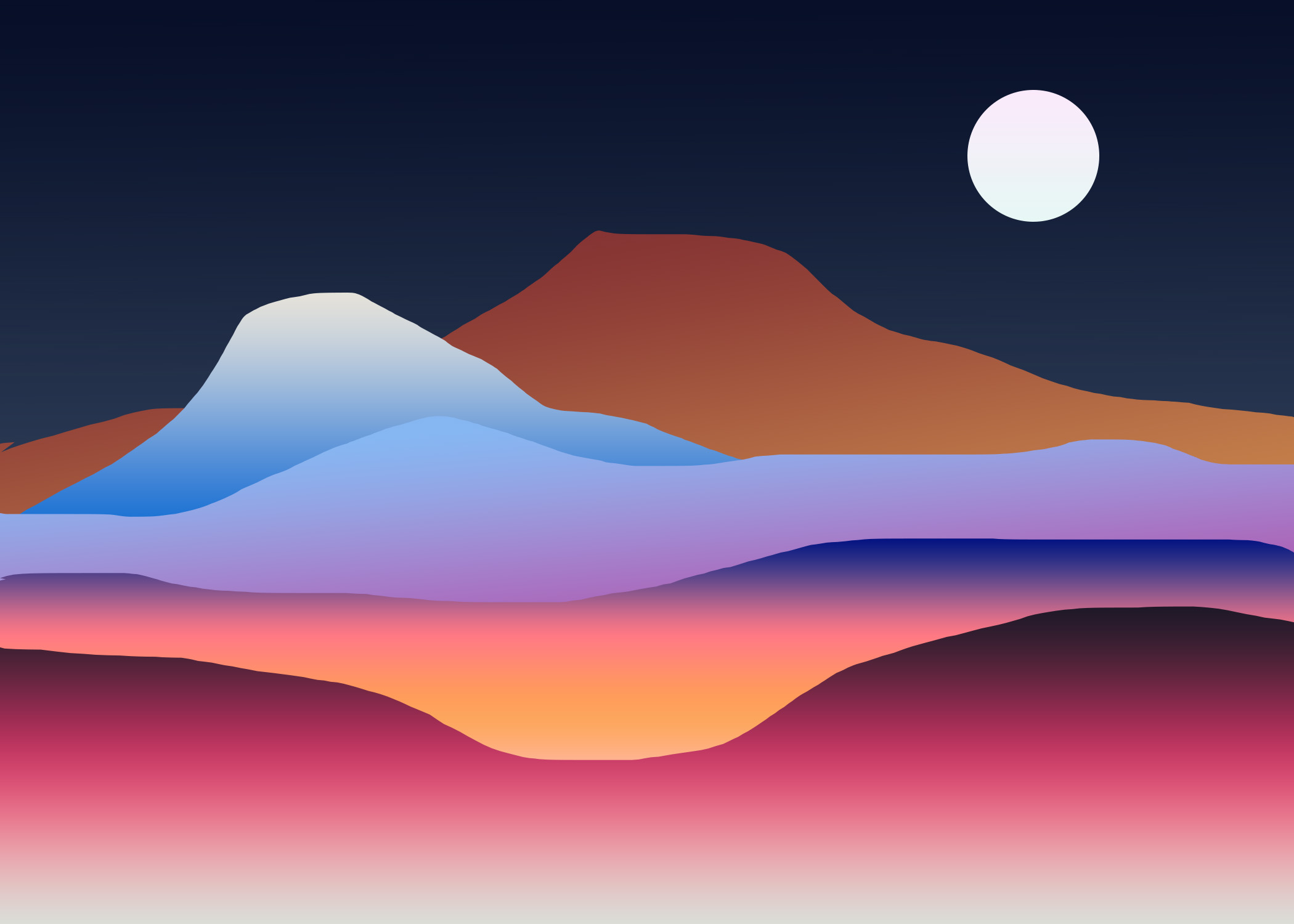
Lab D
Gradient Landscape
Objective
Create a landscape scene from your imagination using gradients and layers in Photoshop.
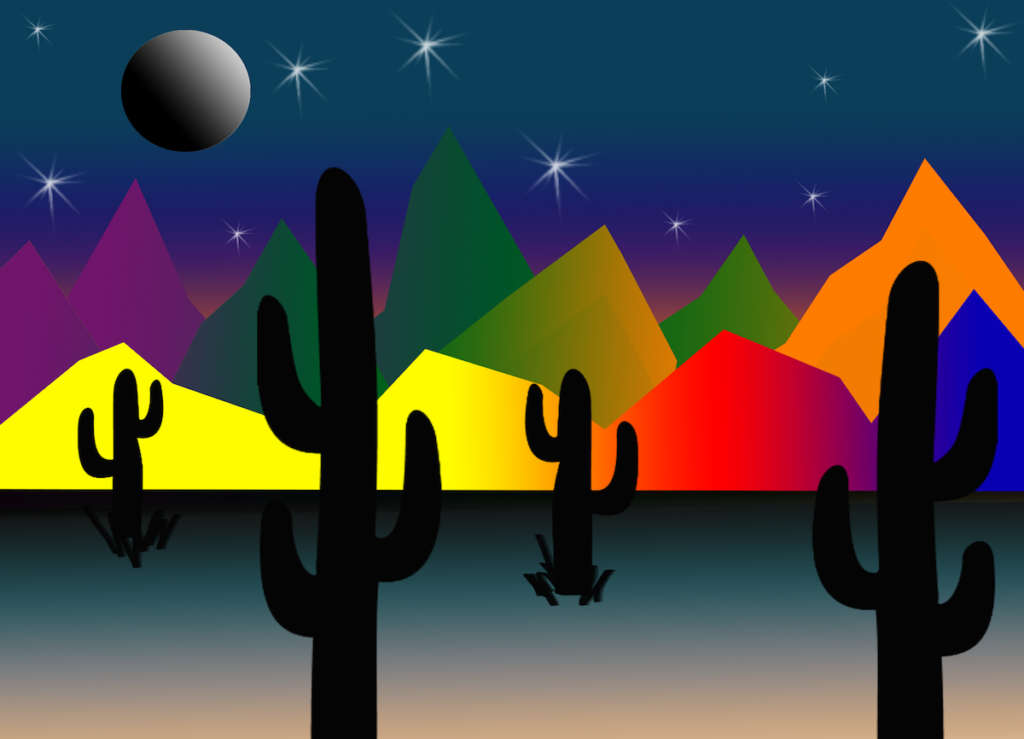
Example Landscapes
Here are examples of gradient landscapes showing different artistic approaches:
Smooth, flowing shapes with soft gradient transitions
Geometric shapes with bold, vibrant gradients
Instructions
Before starting your final Gradient Landscape assignment, complete this short practice exercise.
1. Create a New Document
- • Open Photoshop
- • New File: 8.5" x 8.5"
- • RGB or CMYK
- • 1 Artboard
2. Create Your First Shape (Sky)
- • Select Lasso Tool (L)
- • Draw a simple irregular shape
- • Release to create a selection
3. Apply a Gradient
- • Select Gradient Tool (G)
- • Choose a blue sky gradient
- • Click and drag inside your selection
- • Deselect: Ctrl/Cmd + D
4. Repeat for 2 More Shapes
Create two additional landforms:
- • Mountain Shape: Use Lasso Tool, apply darker gradient (blues, greys, or purples)
- • Ground / Foreground: Use Lasso Tool, apply earthy gradient (greens, browns, or darker tones)
Final Practice Requirement
You must complete:
- • 3 separate shapes
- • 3 different gradients
- • 3 layers of depth (sky, middle ground, foreground)
Tips
- • Hold Shift for straight edges (optional)
- • Use Add/Subtract Selection to refine shapes
- • Keep foreground darker and more detailed
- • Keep background lighter and softer
After Practice
Begin your final Gradient Landscape artwork using:
- • Foreground
- • Middle ground
- • Background
- • At least 5 layered shapes
- • Creative gradient combinations
Photoshop Tutorial Video
Gradients in Photoshop
Watch on YouTube
Inkscape Tutorial Videos
Submit
Submit your work hereSend your submission via email to mitchellh2@cnc.bc.ca. Please CC any other instructors for this course.