
Back to Lab A
Affinity Designer Instructions
Lab A — Layout management in Affinity Designer
Overview
A beginner's look at Affinity Designer. Looking at the Interface, Personas, Menus, the use of Vector and Pixel tools, and Artboards.
Affinity Designer Beginner Guide (PDF)
PDF to read for additional help
Goal
Learn how to efficiently manage layouts in Affinity Designer by using power duplication and key objects. Explore precise control over spacing between elements and discover techniques to unify object dimensions and rotation for a consistent design.
Watch each of the 3 videos below and follow along with the sample files, making the same changes as the instructor.
Affinity Designer Practice
Transform • Rotate • Align • Distribute
Goal: Use Affinity Designer's Transform and Alignment tools to rebuild a simple geometric layout.
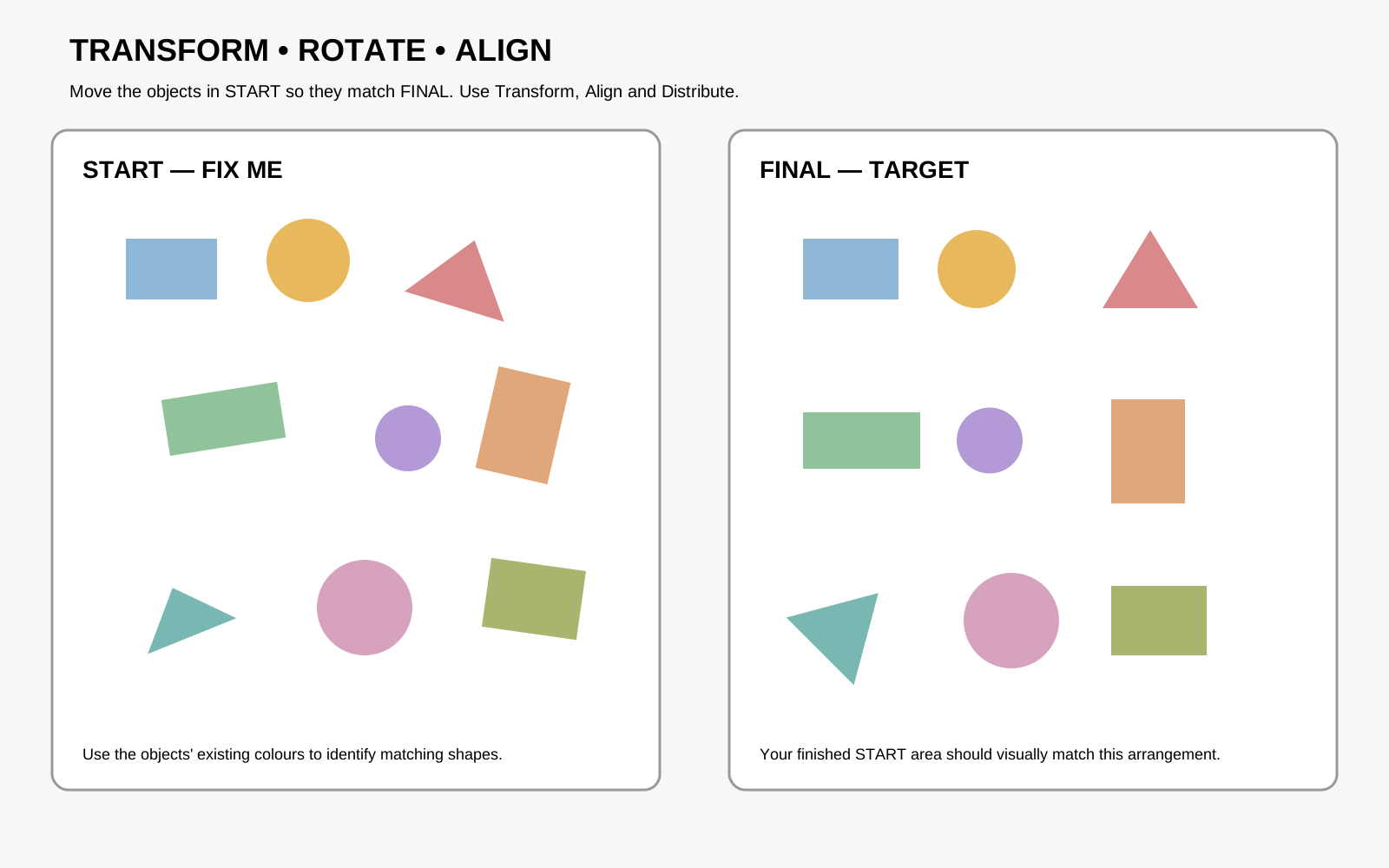
Steps
- Open the practice file supplied with this sheet.
- Work only on the objects in the START area.
- Use the Transform panel to change X, Y, W, H and Rotation values.
- Use Align to line objects up precisely.
- Use Distribute to create equal spacing.
- Try to avoid manually dragging objects into position.
- When finished, compare your result with the FINAL arrangement.
Challenge
- Can you make every object line up perfectly?
- Can you make the spacing between objects equal?
- Can you rotate the triangle to exactly 45° without guessing?
- Can you resize the circle while keeping it perfectly circular?
Tools to practise
- Move Tool
- Transform panel
- Alignment controls
- Distribute controls
- Rotation